Getting started with Pegel
Start with the website. Nothing to install. Pegel brings jobs from company hiring pages into one place, then sends you to the employer when you are ready to apply.
The apps and other tools are optional. Choose the part that helps with the task in front of you.
Choose a starting point
| Your next step | Use this |
|---|---|
| Find a job | Browse jobs |
| Use Pegel on your phone | iPhone and Android apps |
| Type less on an application form | Chrome extension |
| Ask for help in a conversation | Pegel in ChatGPT |
| Compare your CV with open roles | Resume match |
| Use Pegel in an AI coding tool | AI agent skill |
Browse jobs
- Open the job list. Check the city shown at the top.
- Search for a role or use the filters to narrow the list.
- Open a job to read the employer's description. Use Apply when you want to continue on the employer's site.
Browsing does not require a Pegel account. The employer may ask you to create an account on its own application page.
Pay appears when an employer discloses it. Missing pay or visa information stays unknown. Read the job description before deciding whether to apply.
Fill a form with Chrome
Use the extension in Chrome on a computer. It helps fill selected contact fields. A CV can be attached separately. You review and submit the application yourself.
Set it up once
- Open Pegel in the Chrome Web Store. Select Add to Chrome and follow Chrome's prompts.
- In Chrome, open the extensions menu beside the address bar and pin Pegel. This keeps its button easy to find.
- Open an application page, then click Pegel's toolbar button. Enter the contact details you want to use and select Confirm details.
Fill an application
- On the application page, click the Pegel toolbar button again, then select Find fields. If several forms appear, choose the application form.
- Check the suggested values. Select the empty fields you want to fill, then press the Fill button. Its label shows the number of selected fields. Existing entries stay in place.
- Read the actual form on the employer's page. Complete anything still missing and press that page's Submit button yourself.
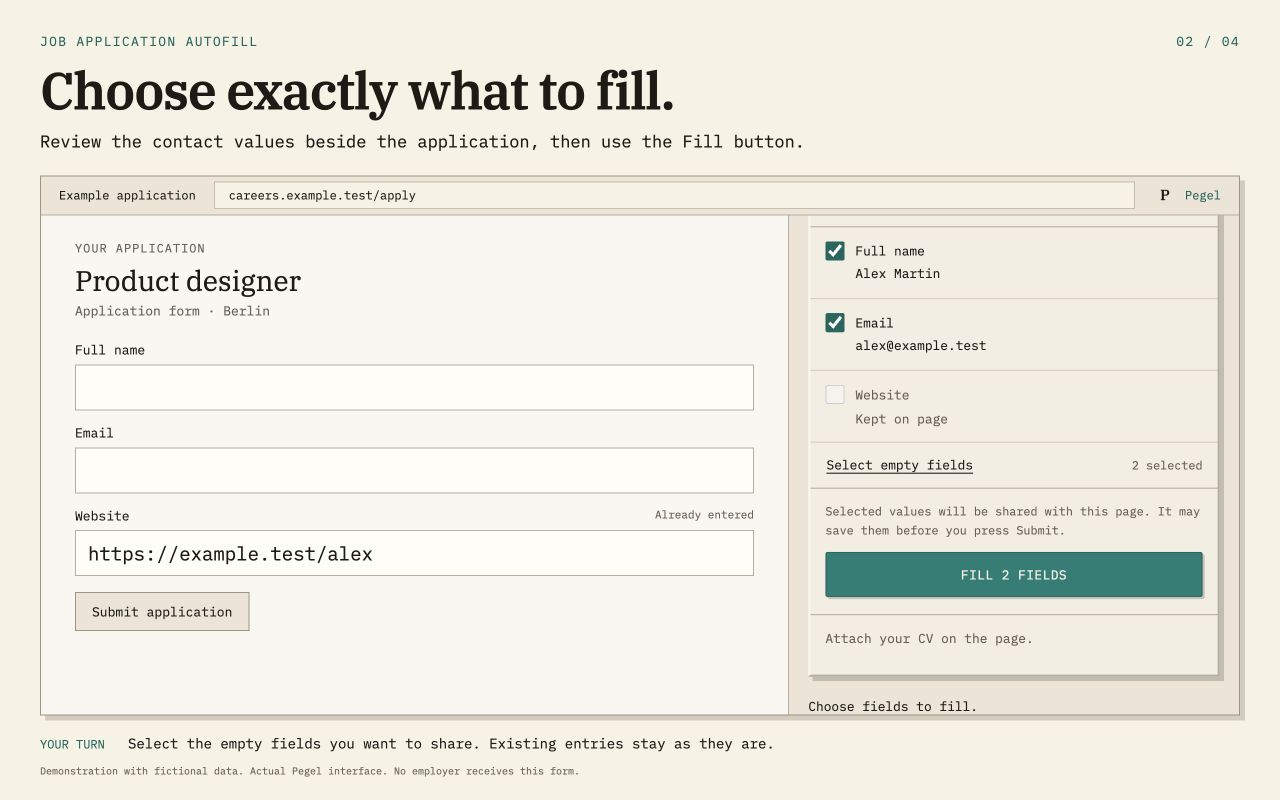 Choose the empty fields to fill. Example with fictional details.View full size (opens in a new tab)
Filling shares those details with the website immediately. A site can save them before you press Submit. Undo fill clears unchanged values filled by Pegel; it cannot recall information the site has already received.
Attach a saved CV
- In Pegel's CV section, select Choose PDF. Choose one PDF, up to 5 MiB, roughly 5 MB.
- If asked, create and confirm a passphrase of at least 15 characters. This is the password for unlocking the saved CV. Select Save encrypted CV. Saving keeps a protected copy in Chrome on this computer; it does not attach the file to a website.
- Find the fields on your application page, then press Attach CV separately. Check that the correct filename appears on the employer's form.
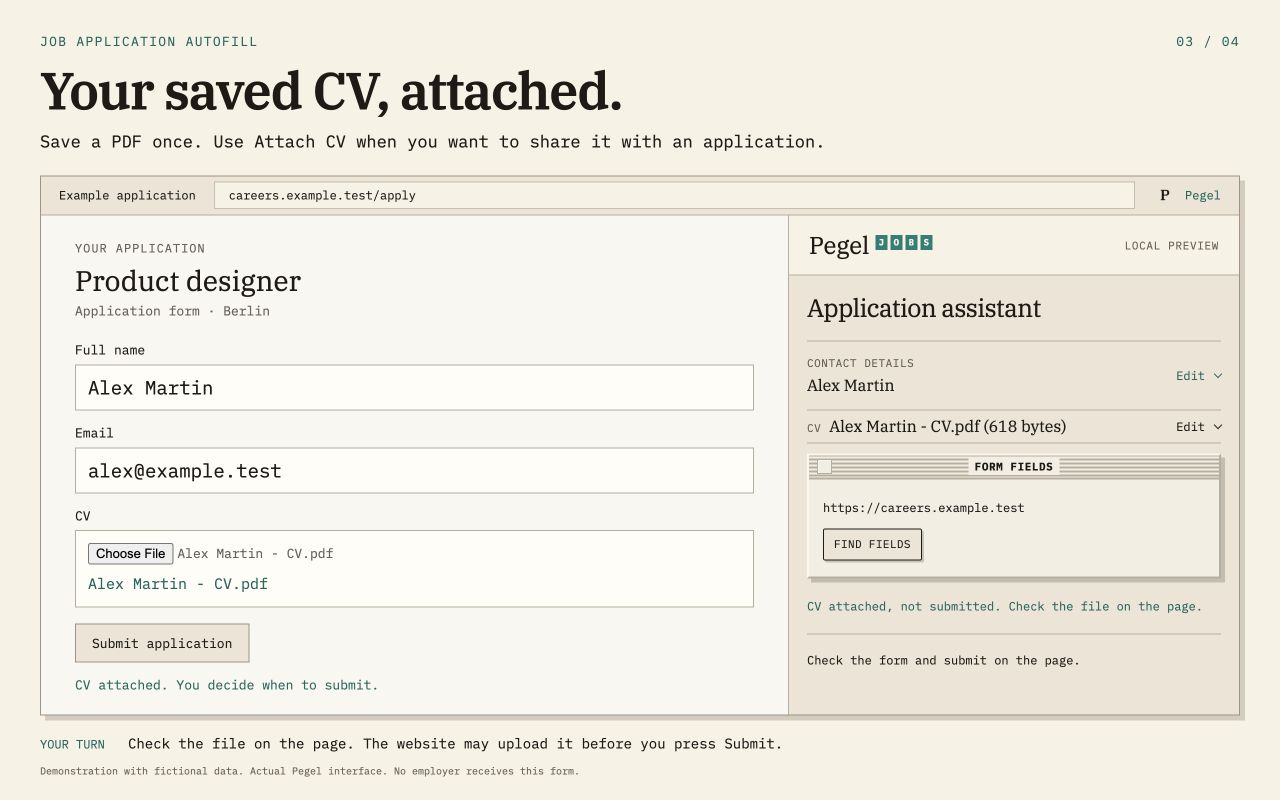 Check the filename on the actual form. Submission stays with you.View full size (opens in a new tab)
The employer's page can read or upload the CV as soon as you attach it. You still submit the application yourself.
Unlock the saved CV after restarting Chrome. Pegel cannot recover a forgotten passphrase. Remove CV removes only the saved PDF. Forget in this extension clears the saved CV as well as contact details. Check any error message before assuming deletion succeeded.
When a form needs manual entry
Some fields and embedded forms cannot be filled safely. Type those values yourself or use the employer's file chooser. Pegel leaves a file already selected on the page in place. If the page changes, click Pegel's toolbar button again and find the fields afresh.
Remembering contact details is optional. To reuse them after restarting Chrome, open Remember details, choose the details to keep and press Remember selected. Follow the passphrase prompts. Saving a CV does not turn contact remembering on. Read the extension privacy notice for the storage and deletion controls.
Get help in ChatGPT
Use this when you prefer to ask for jobs or discuss an application in a conversation.
- Open Pegel's ChatGPT plugin page. Sign in if asked and follow the install prompts shown by ChatGPT.
- Start a chat with Pegel enabled. Try: Find Berlin product roles that do not require German.
- Choose a role to discuss. Ask for a draft using only the experience already shared. Check every fact in the draft before using it.
 Look for Pegel: Jobs from the source, then select Install plugin.View full size (opens in a new tab)
You can share relevant CV text if you want help comparing your experience with a role. Anything shared in ChatGPT is processed under ChatGPT's terms and your account settings. Share only what is needed for the task. Read Pegel's privacy notice, including its ChatGPT section.
Pegel does not send the application, upload a CV to an employer or read your mailbox through this plugin. Open the employer's application link and finish there yourself.
If ChatGPT cannot use Pegel, check that the plugin is enabled for the conversation. You can also continue on the website.
Match your CV
Open Resume match on a desktop or laptop. This tool compares CV text with open Berlin roles in your browser.
- Drop in a PDF or TXT file, or paste your CV text.
- Press
Match my resume. Read the matching skills and the requirements you may want to check in each job description. - Open a role that interests you and read its full description before applying.
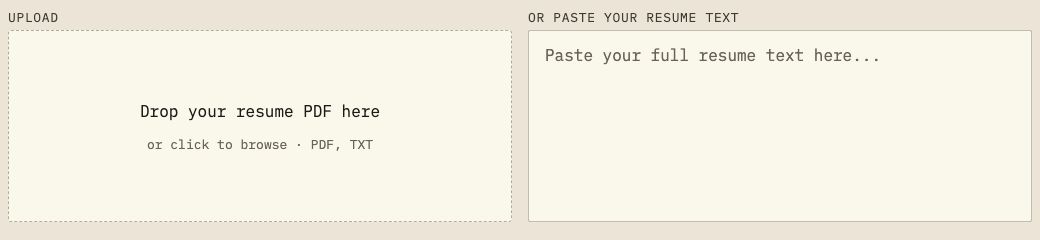 Drop a file on the left, or paste CV text on the right.View full size (opens in a new tab)
If a PDF cannot be read, paste text from your original document instead.
Matching does not send your CV to Pegel's servers. After matching, the CV text is saved in that browser so other Pegel pages can show your fit. This browser copy is not password-protected by Pegel. Use Forget saved resume on this device on the results screen to remove it, especially on a shared computer. Closing the tab does not remove that saved text. This is separate from the Chrome extension's encrypted CV storage.
Use Pegel on your phone
Get the iPhone app or get the Android app from its official store. Follow the store's installation steps, then open Pegel. Check the city shown in the app before searching.
The Chrome extension and Resume match are computer tools. On a phone, you can also use the website without installing an app.
Use an AI agent, optional
This option is for people already using a tool such as Codex, Claude Code or Cursor. Open the AI agent skill guide for its installation command and supported workflow.
No terminal command is needed to use the Pegel website, Chrome extension or ChatGPT plugin. The skill's saved files and your AI provider's handling of their contents are explained in its own guide.
Get help
If a listing has closed, return to the job list and choose another role. If a form cannot be filled, continue manually on the employer's page.
For a problem with Pegel, email pegel@mail.pegel.berlin. Include the page link and what happened. Do not send a CV, passphrase or other private application details unless they are needed and you choose to share them.